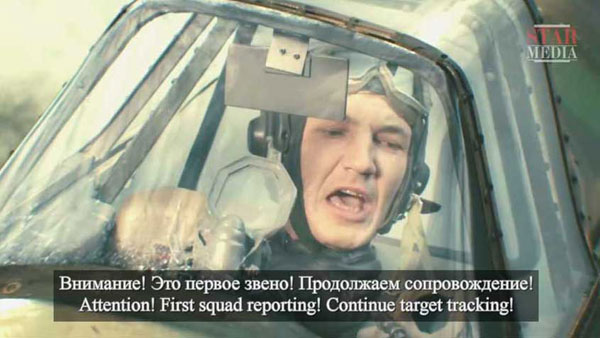
This is what the interlinear subtitles should look like in VLC PLAYER:
The purpose is to provide interlinear subtitles for youtube movies. I am adding step-by step instructions here so you can get it
working.
1. Download VLC MEDIA PLAYER
or some other player that has a speed control and allows you to add subtitle
files to the movies you watch.
2. Get an application that downloads youtube videos, then use it to download the movie.
You can find these applications by doing a search, or you can get YouTube downloader here:
YOUTUBE DOWNLOADER
3. Create a directory to put the movie and subtitle files in.
4. Download the movie whose link is listed below using YouTube downloader into
the directory you created.
5. Download the subtitle files from the link below on this page, and unzip them
into the same directory.
4. Using VLC player, go to media > open file to load the movie.
5. Using VLC player, go to Subtitle > Add Subtitle File to load the subtitles.
6. You will need to slow down the playback. The easiest way to control
playback is with the "[" and the "]" buttons. To slow down
playback, use the "[" button. The "]" button speeds it up again. I
normally set playback somewhere between 50% - 70%, when you press one of these
two buttons, the speed will appear in the upper right hand
corner of the screen.
With VLC Player, you can hit the spacebar to stop playback on anything you want
to review, and hit it again to restart.
RTF (TTS) Files can now be easily made in Tachfind ( you can download Tachufind here: https://www.archeuslore.com/tachufind/download.html ), open the SRT file in Tachufind, then follow the menu: Format → Build TTS File
Some of these will have an RTF (Rich textbox) file. These files can be used in Tachufind
to review the movie text in interlinear form, and, if you have the voice for your
text-to-speech, you can play it. Because Tachufind is set up to skip sentences that
are surrounded with brackets [sentence], it will read only the language on the top.
Also, you can review line per line by selecting the line you want to play and clicking
the Play button, and it will play just that line.
The asterisk (*) indicates that I have reviewed the subtitles, meaning
that I have gone though and checked to find definitions or other faults that I
can correct; that does not mean that the subtitle will be perfect, by a
long shot, because I am still learning Russian, and, there are just some things
that only a native speaker could fix, I fix the obvious, look up definitions for
words that did not get translated, and, leave anything else that I do not know
how to deal with intact. Some words you just do not find defintions for,
and some of the wording defies correction without deeper knowledge of Russian.